Inviting Family
Add family members
Add members to your family group. Only Admin users can add family members. Family users and Guests should ask an Admin user to add them.
You can add them after creating Talk Rooms during initial setup, or from [Family settings - Member list] > [Add member] on the settings screen.
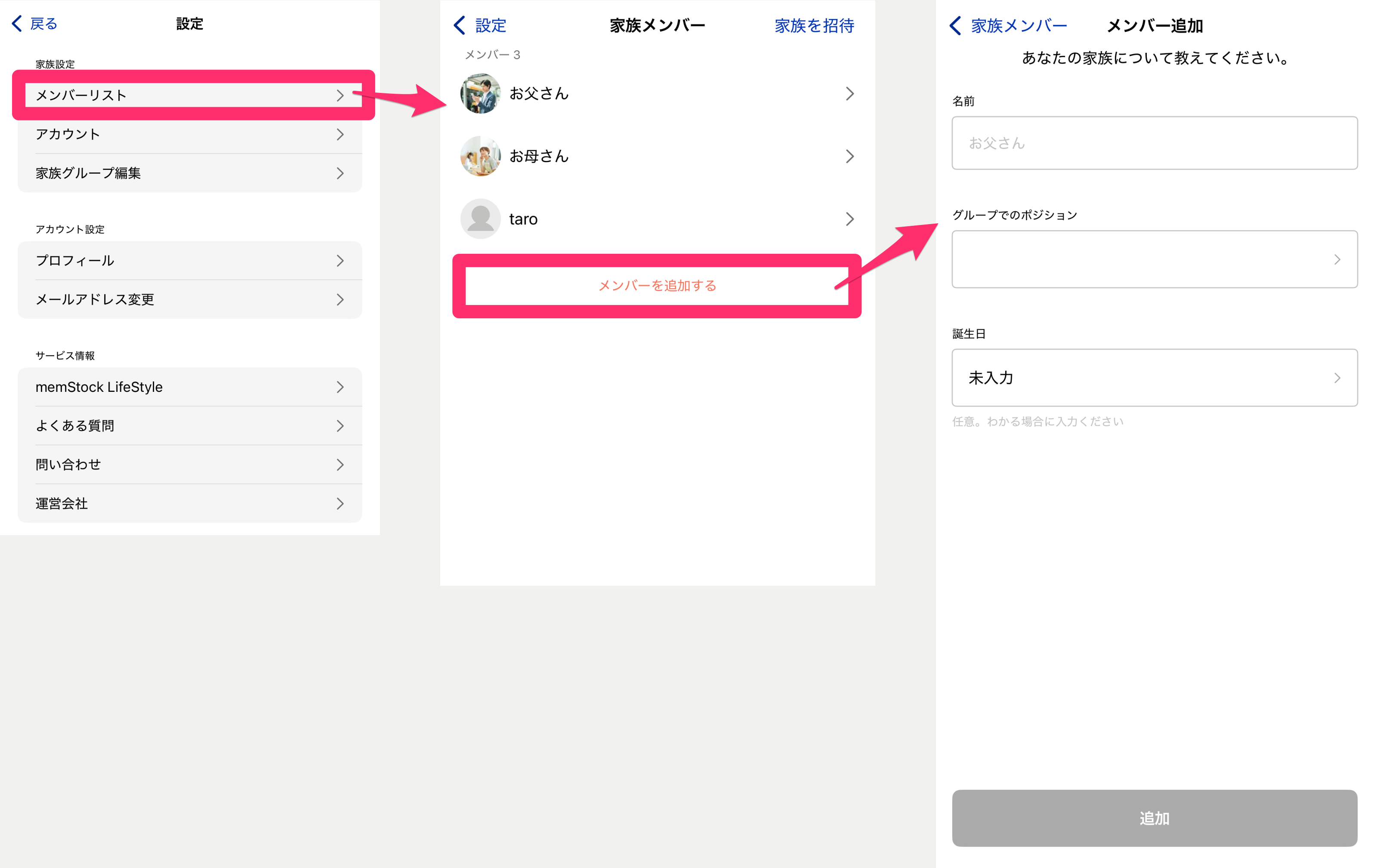
- Name The name of the member to add. The person being added can edit this later.
- Your relationship in the group Select the member's relationship (role) within the group. If there's no matching item, select Other.
- Date of birth Enter the member's date of birth. If you don't know it, you can proceed without selecting it. You can change it later, so it's fine to skip.
Invite your family
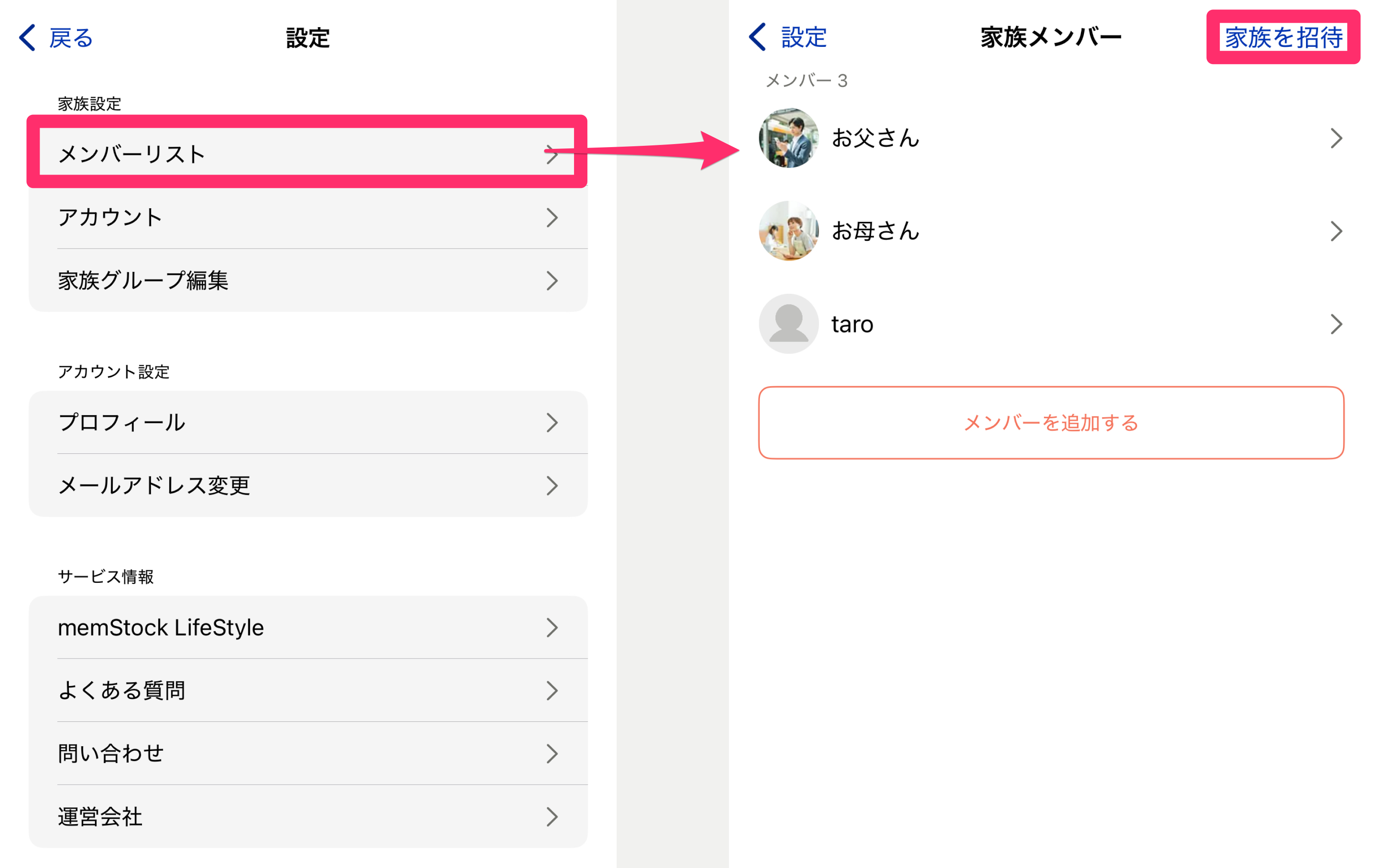
Invite the members you added. You can invite them from [Family settings - Member list] > [Invite family] on the settings screen.
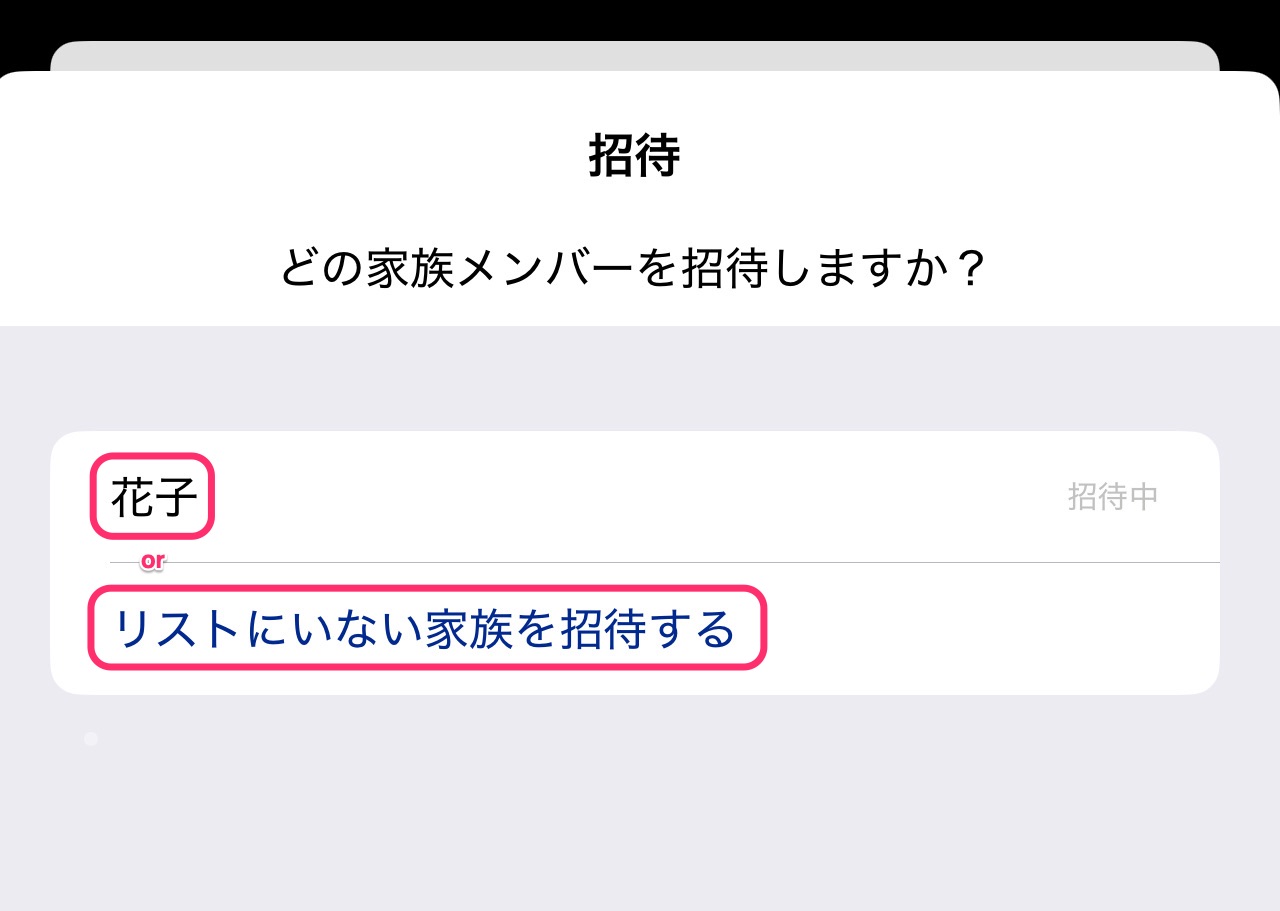
Choose the member you want to invite from the invitation screen, or if there are no members, add one using the [Invite a family member not on the list] button.
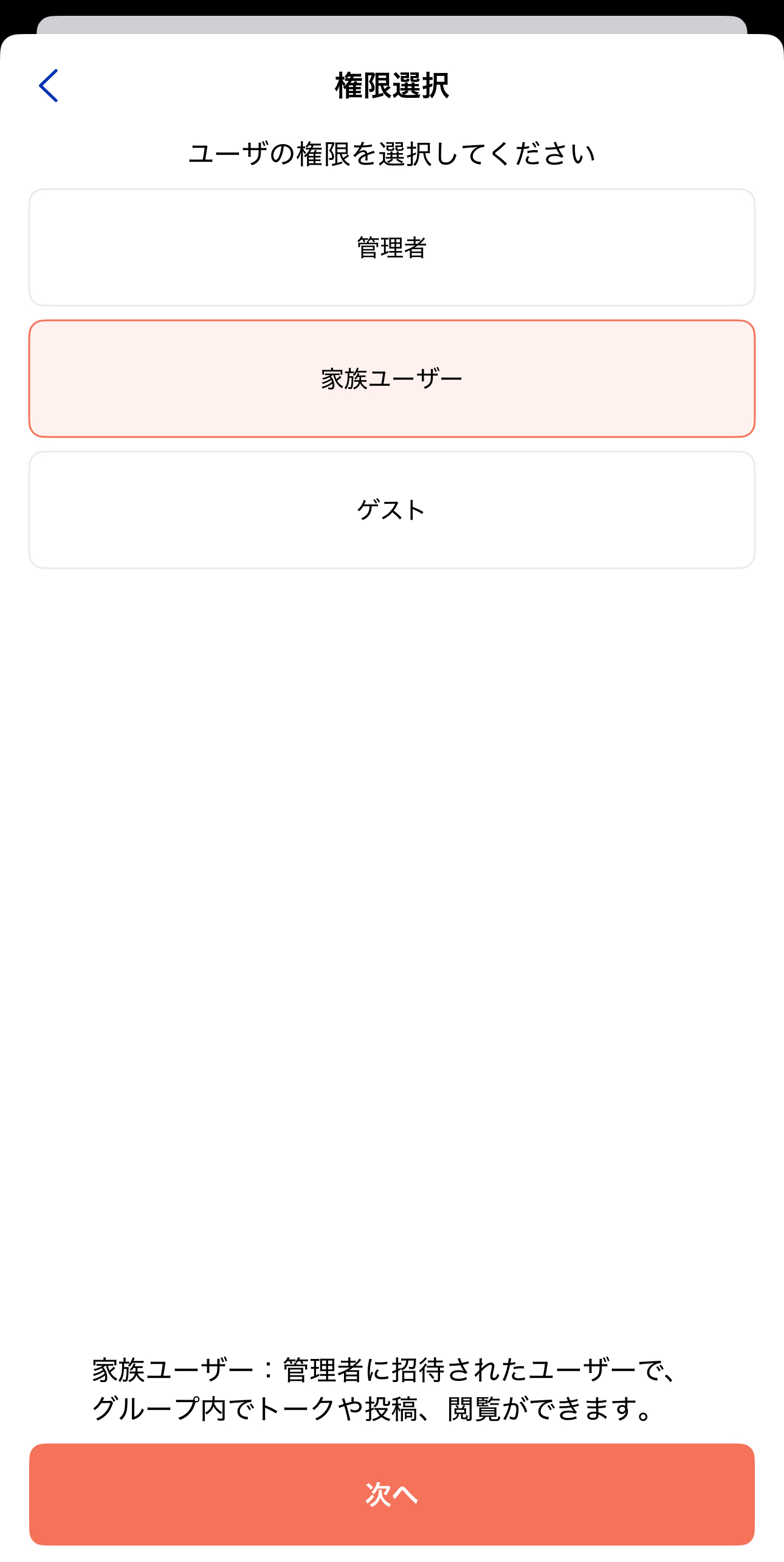
After selecting the member to invite, choose the user's permission on the next screen. See What's the difference between Admin, Family user, and Guest? for the differences.
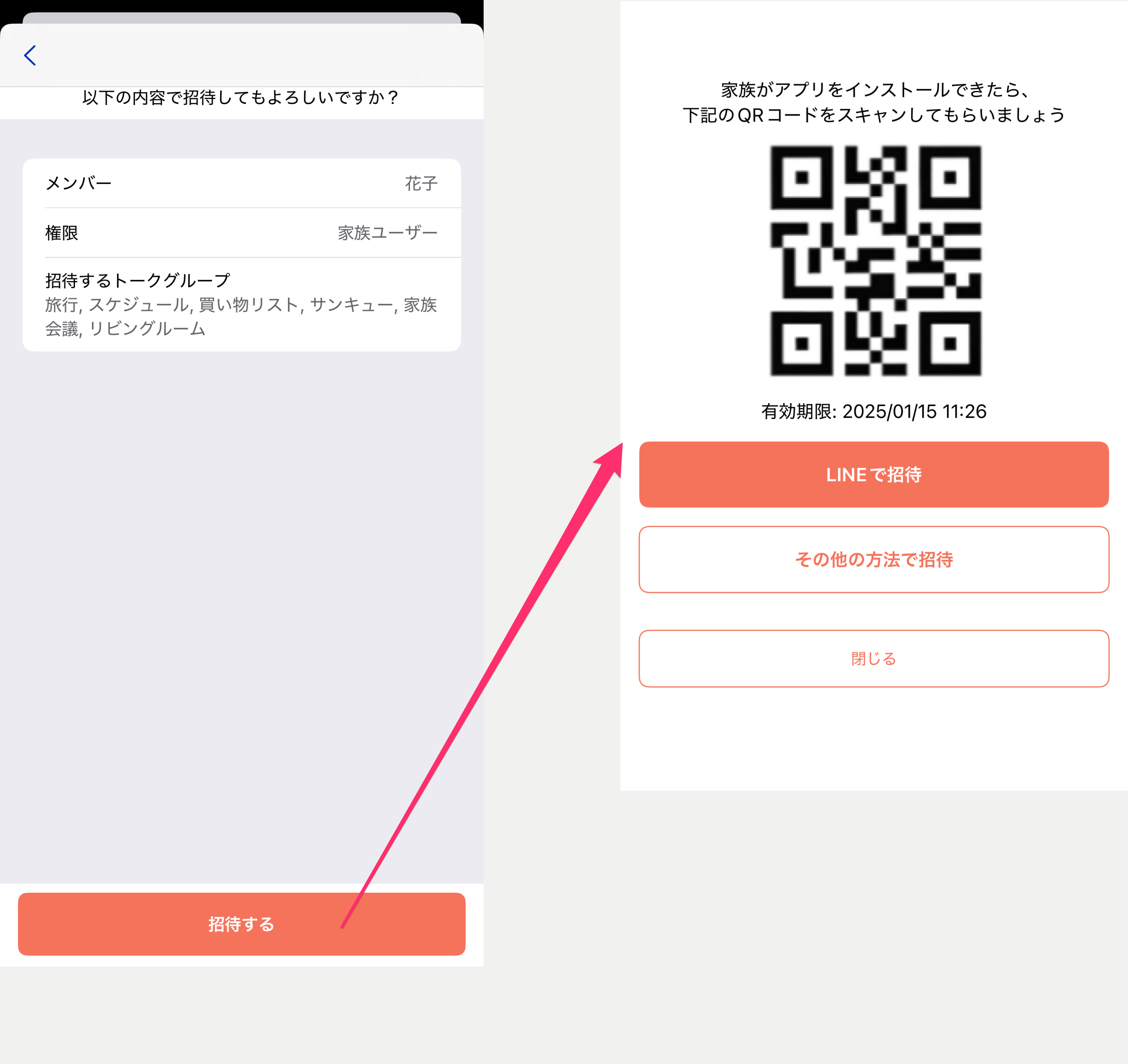
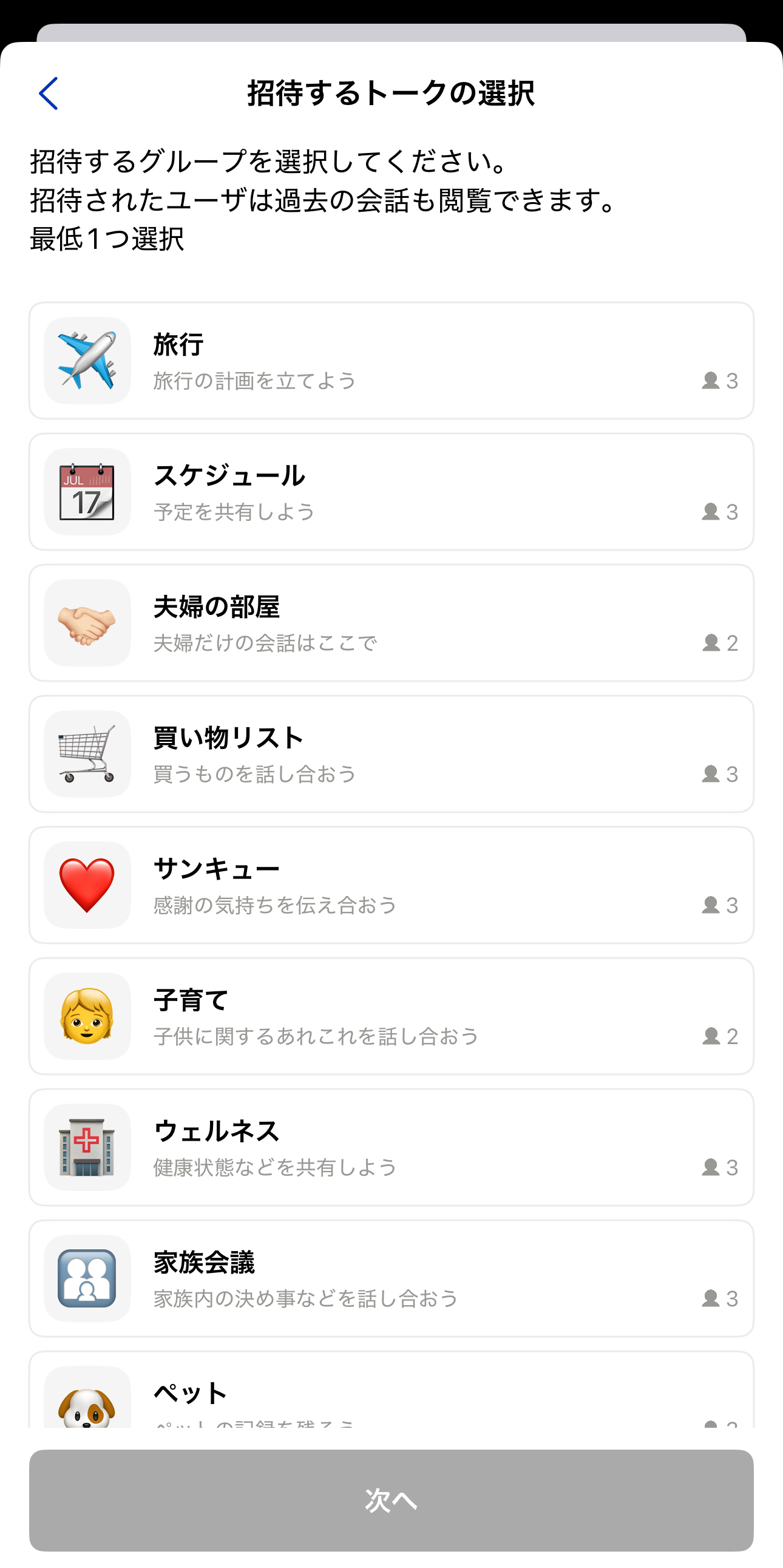
Next, select the Talk Rooms to invite them to. Choose the Talk Rooms you want the invited member to join (at least one).
*Note that members who join will also be able to see the Talk history from before they joined.
Finally, review the details and press the [Invite] button to display a QR code. Have the person you're inviting scan it, or use the share button to share it via a service like LINE.
*Invitations are valid for 24 hours. If it expires, invite them again.