
Getting Started (Sign-up)
Download
Create an account
Tap the [Get started] button on the app's top screen. If you received an invitation QR code from your family, tap the [I have an invitation] button.
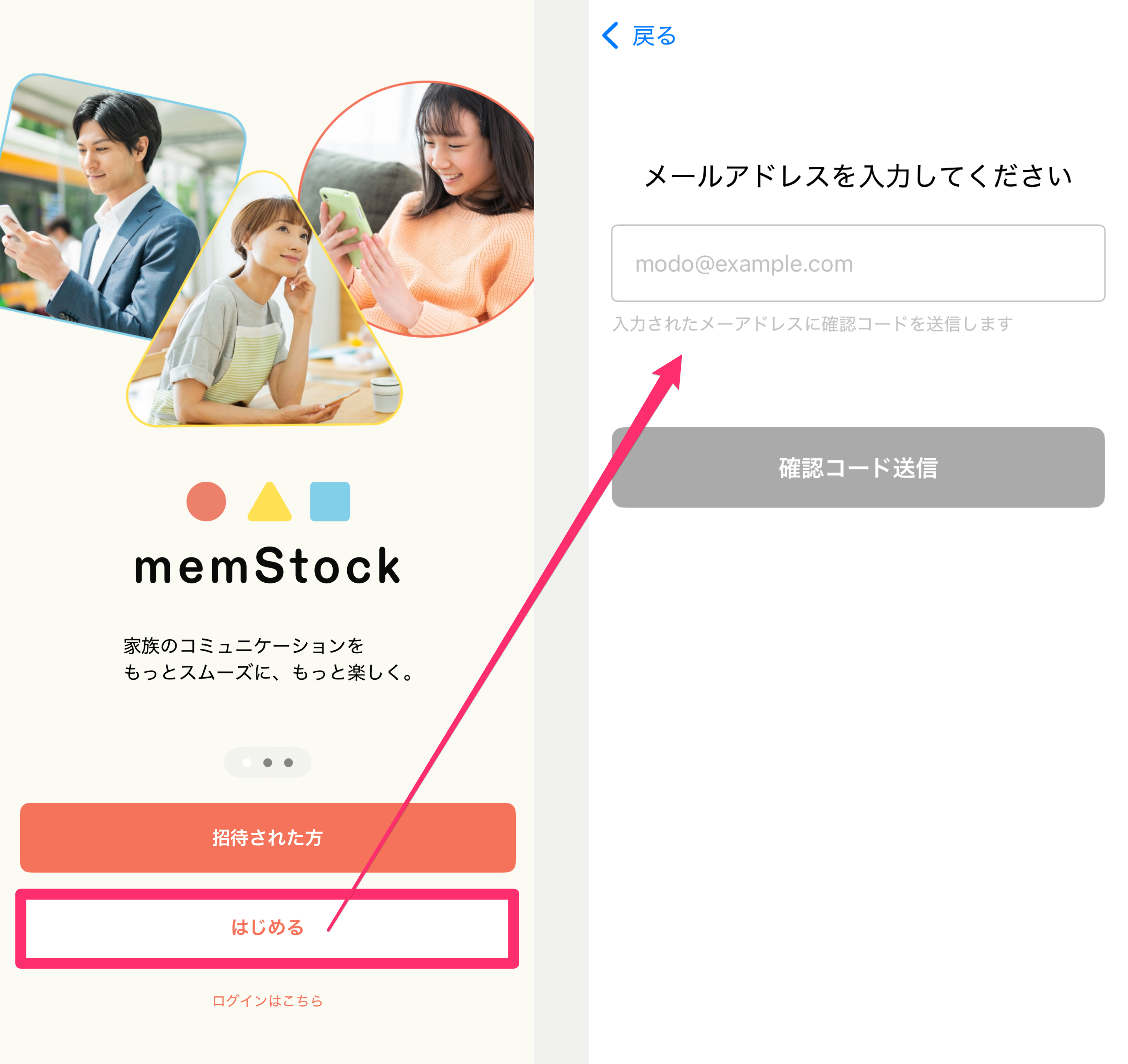
Enter your email address and tap [Send verification code], and an email with a 6-digit code will arrive. Enter the 6-digit code on the memStock screen to complete verification.
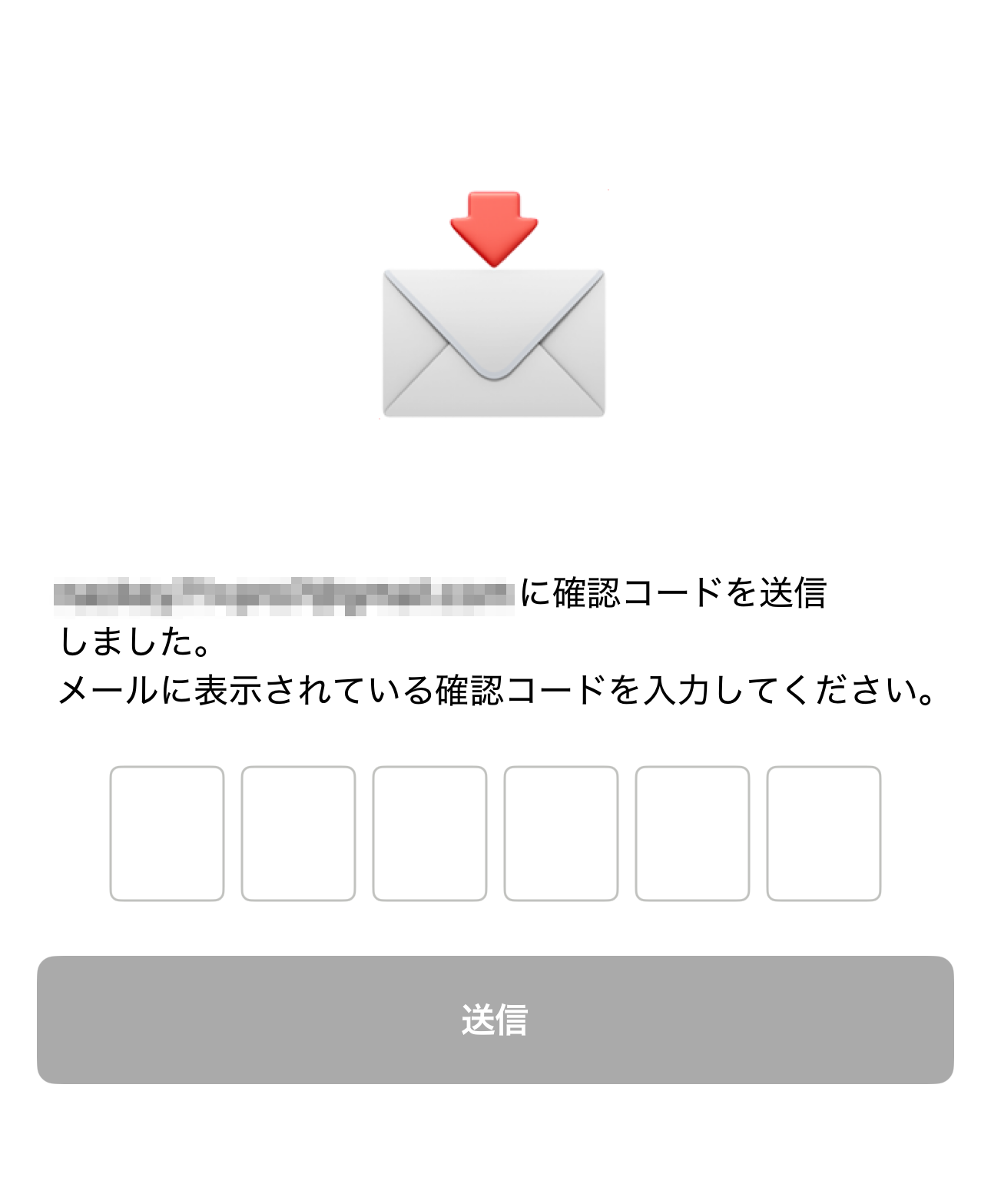
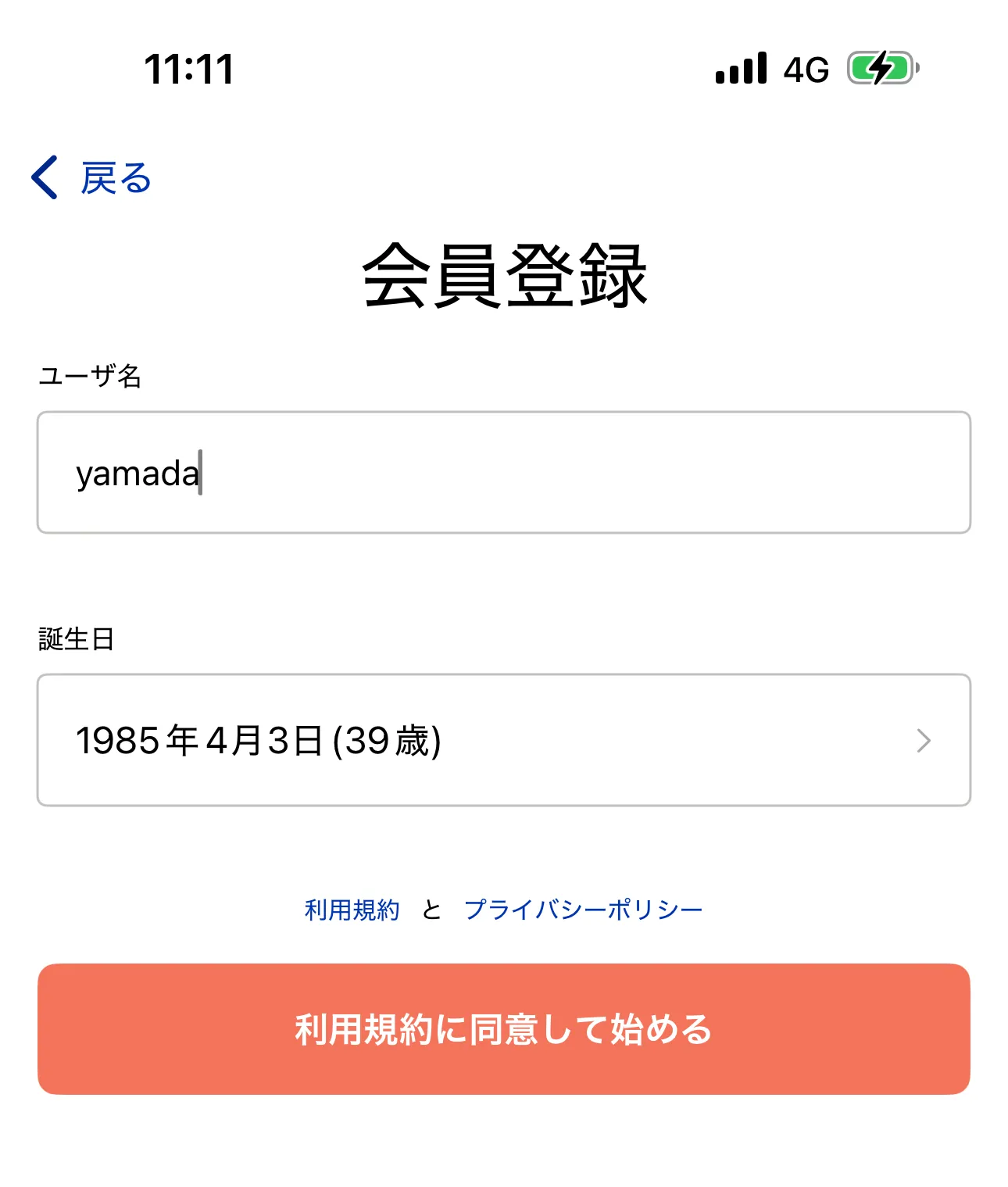
Create your account on the next screen.
After entering your username* and date of birth, review the Terms of Service and Privacy Policy and tap [Agree and get started] to finish creating your account.
*Your username is an account ID and is not shown to other users.
If you were invited
Open the invitation URL in the invitation message, or scan the invitation QR code, to proceed to the email verification screen.
The email verification steps are the same as in Create an account.
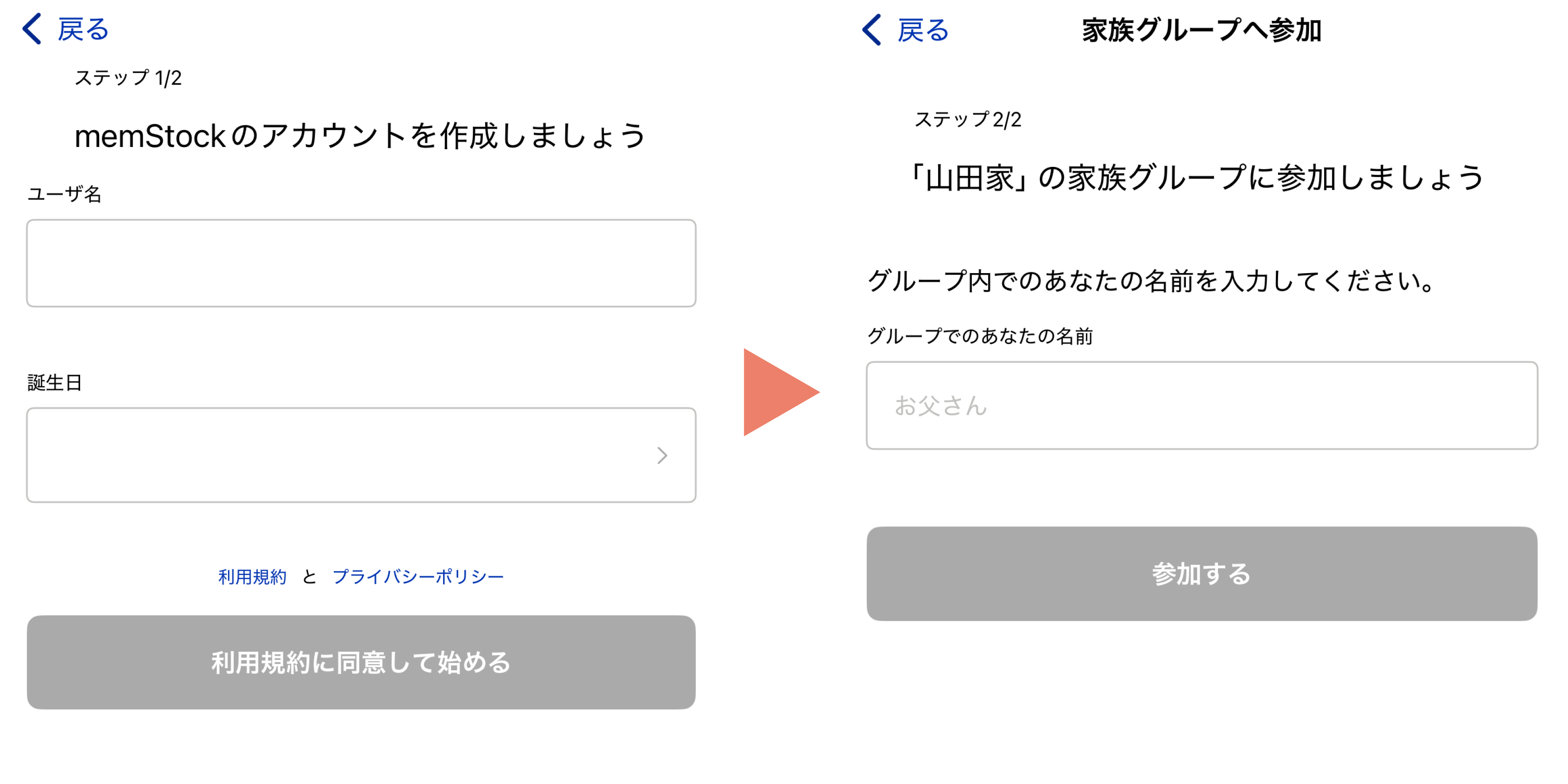
After email verification, you create an account in Step 1 and join the family group in Step 2.
*If you've already created an account, only Step 2 is needed.
Create a family group
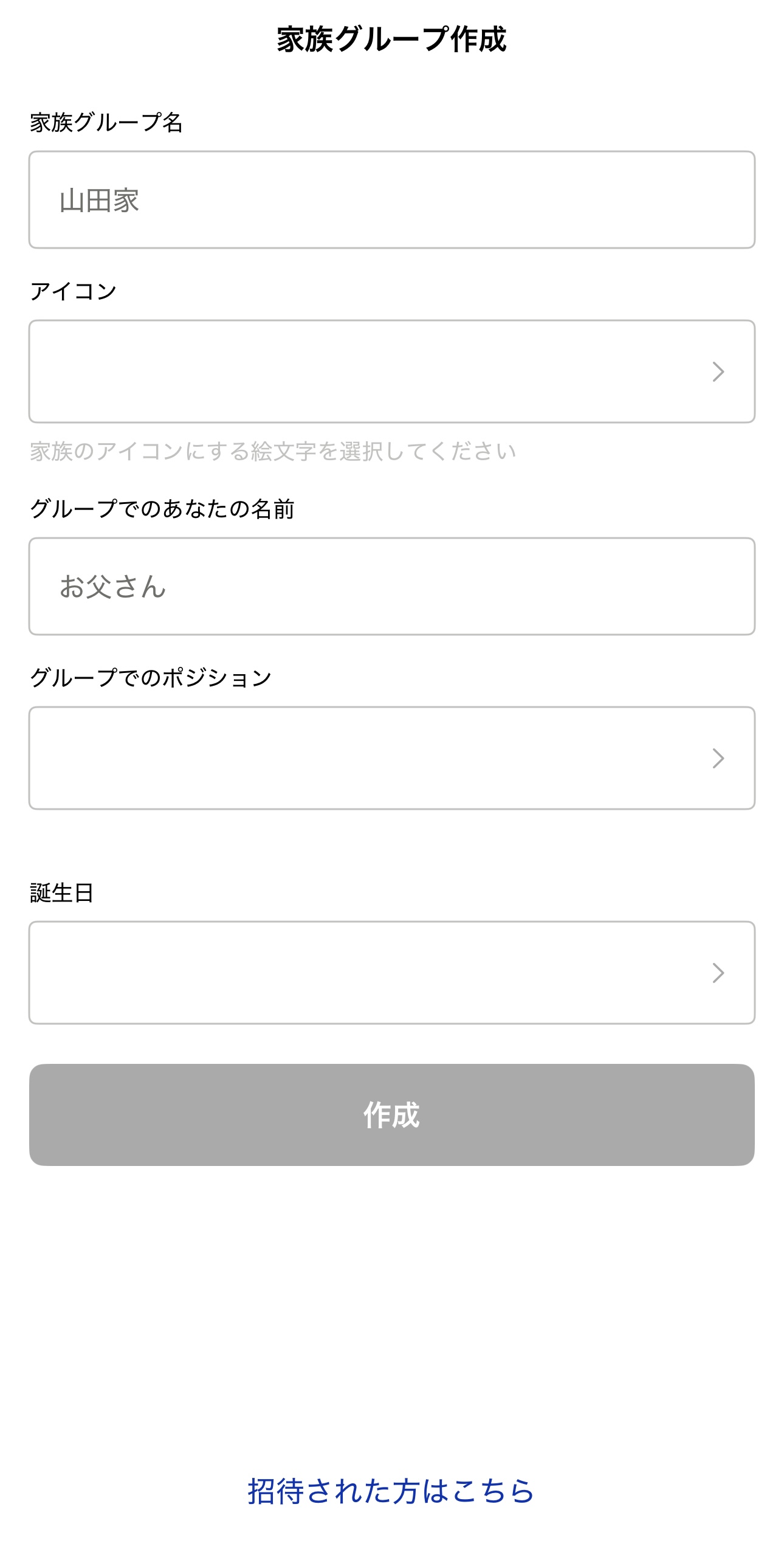
Create a group for the family you communicate with. You can add groups later, so start with the family you live with.
- Family group name Your family's name. Use your family surname or an easy-to-understand name that represents your family.
- Icon Choose freely from the emoji list.
- Your name in the group Use the name you're usually called by so your family recognizes you.
- Your relationship in the group Select your relationship within the family (e.g., Father, Daughter, Grandfather). If it's not in the list, select [Other] and enter it yourself.
- Date of birth Enter your date of birth.
Create a Talk Room
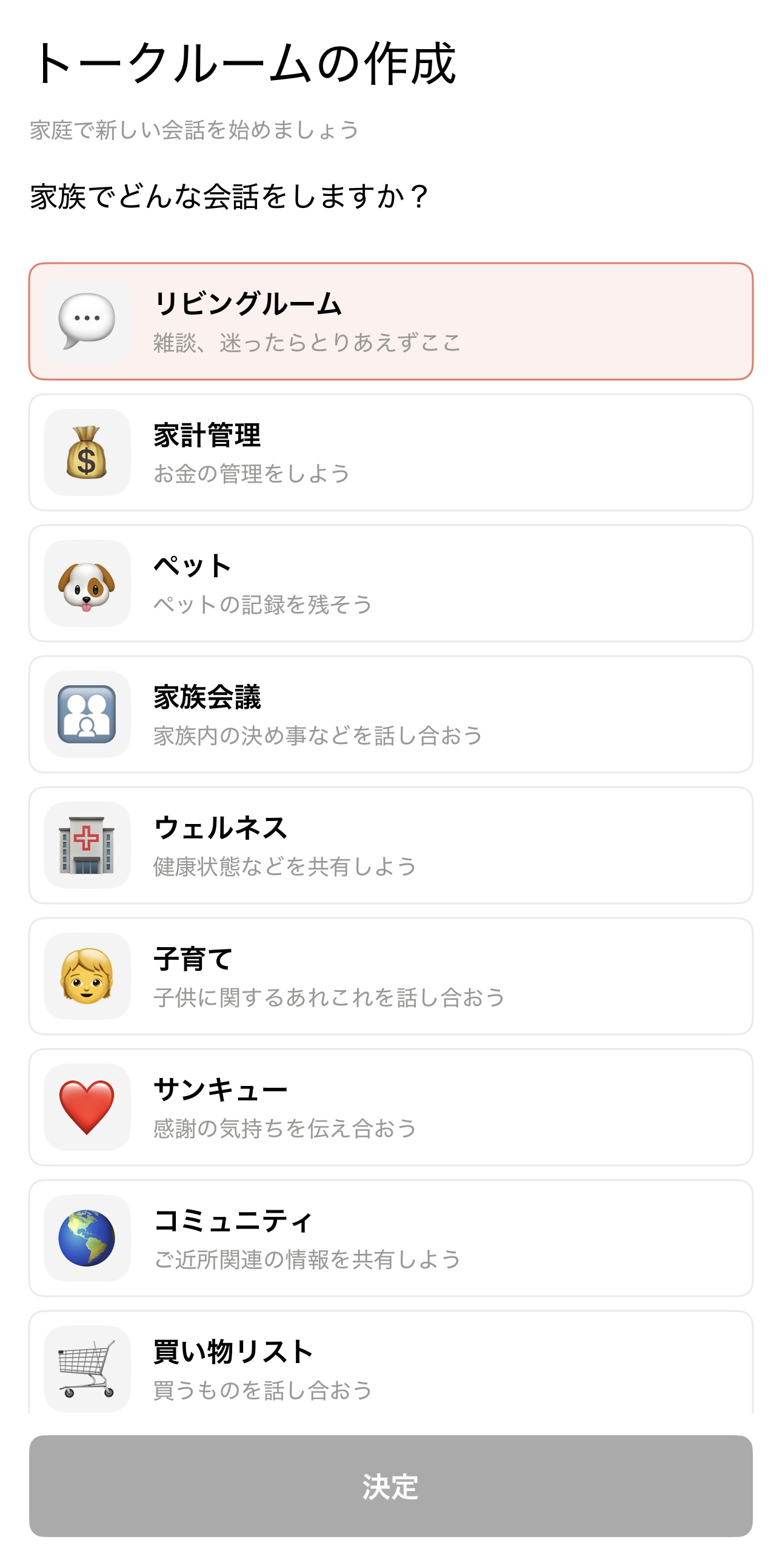
Here you create your initial Talk Rooms.
Select from the Talk Rooms prepared in advance. You can add Talk Rooms later as well.
memStock's Talk Rooms let you separate conversations by topic, so messages don't get lost in the flow. Select the "Living Room" for family chit-chat, plus at least one more Talk Room.
Add members
Finally, add your family members.
You can also add family members after finishing the initial setup (Add family members). To add them later, skip this and your initial setup is complete.
Once you've invited your family members, the initial setup is done! Let's start using it right away!